
My cousin called me in a panic last year. Someone had gotten into his email, used it to reset his banking password, and drained a significant chunk of his savings before he even noticed. The whole thing took maybe 45 minutes from first breach to empty account.
The part that really got me? He wasn’t careless. He considered himself reasonably tech-savvy. He just hadn’t built the right habits. And habits — not knowledge, not fancy tools, not expensive software — are what actually determine whether you stay secure online.
I’ve spent years testing security tools, reading breach postmortems, and yes, making my own embarrassing mistakes along the way. What I’ve learned is that most successful cyberattacks don’t exploit sophisticated zero-day vulnerabilities. They exploit predictable human behavior. Which means changing that behavior is genuinely the most effective defense available to regular people.
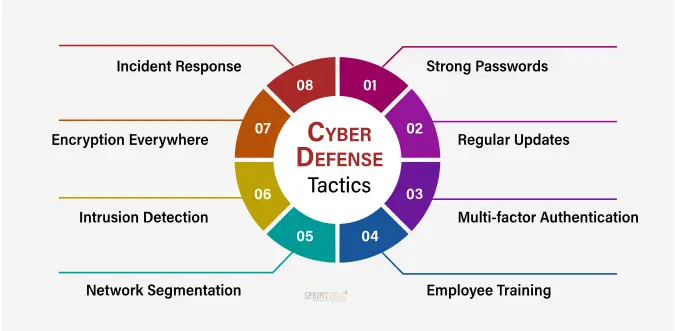
Here are seven habits that have meaningfully improved my own cybersecurity — and that I’d push everyone I know to adopt.
1. Treat Every Unexpected Message as Guilty Until Proven Innocent
Phishing is still the number one entry point for the majority of cyberattacks. Not because people are stupid — but because modern phishing attempts are genuinely convincing.
I got one last year that appeared to be from my neobank. Correct logo, correct color scheme, my actual name in the greeting, and a legitimate-looking sender domain at a glance. The message said there was a suspicious login attempt and I needed to verify my account immediately.
I almost clicked. What stopped me was a habit I’d drilled into myself: before clicking any link in an unexpected message, I hover over it first (on desktop) or long-press it (on mobile) to see the actual destination URL. The link in that email went to a domain that had nothing to do with my bank.
Building this habit step by step:
Step 1 — Pause before you click. The urgency you feel when reading “your account will be suspended” is manufactured. It’s designed to short-circuit your judgment. Recognize that feeling as a red flag, not a reason to act faster.
Step 2 — Check the sender address, not just the sender name. Anyone can set their display name to “PayPal Support.” The actual email address is harder to fake — look at the domain after the @ symbol.
Step 3 — Go directly to the source. If the email claims to be from your bank, close the email and open your bank’s app or type the URL manually into your browser. Don’t use any link from the message itself.
Step 4 — When in doubt, call. Legitimate companies have support lines. A two-minute call to verify whether something is real is worth it.
| Phishing Signal | What to Look For |
|---|---|
| Sender domain | Does it exactly match the company’s real domain? |
| Urgency language | “Act now”, “immediate action required”, “24 hours” |
| Link destination | Hover/long-press to see actual URL before clicking |
| Request type | Legitimate orgs rarely ask for passwords via email |
| Greeting | Generic “Dear Customer” vs your actual name |
The habit isn’t paranoia. It’s a three-second check that has, personally, saved me from at least four phishing attempts I can identify.
2. Use a Password Manager — and Actually Use It Properly
I resisted password managers for years. Felt like extra friction. Then I did an audit of my passwords and found I’d used variations of the same base password across 23 accounts. One breach of any of those services could cascade into all of them.
Password managers like Bitwarden (free, open-source, excellent), 1Password, or even Apple’s built-in Keychain solve multiple problems simultaneously. They generate strong, unique passwords for every account, store them securely, and autofill them so the friction argument dissolves pretty quickly.
Here’s what proper use actually looks like:
Step 1: Choose a manager and set it up with a strong master password — this is the one password you actually need to memorize. Make it a passphrase (four or more random words) rather than a complex short password. “purple-lamp-river-2049” is stronger than “P@ssw0rd!” and far easier to remember.
Step 2: Enable the browser extension and mobile app. The friction goes to near zero when autofill works properly.
Step 3: Start with your most important accounts — banking, email, social media — and let the manager generate new, unique passwords for each.
Step 4: Whenever you create a new account anywhere, let the manager generate the password. Stop making passwords yourself entirely.
Step 5: Run the security audit feature most managers include. Bitwarden and 1Password will flag reused passwords, weak passwords, and passwords that appear in known data breaches.
The unexpected result I noticed: having strong unique passwords actually reduced my anxiety about using online services. I stopped worrying about whether a site was secure enough because a breach of that site couldn’t cascade anywhere else.
Common mistake: Using a password manager but still saving “easy” passwords for sites you think don’t matter. Your streaming account, your grocery delivery app, your loyalty card login — attackers use these as pivot points to gather personal information they use elsewhere. Every account deserves a unique password.
3. Enable Multi-Factor Authentication on Everything That Offers It
If I had to pick one single habit from this entire list, this would be it.
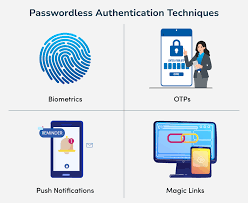
Multi-factor authentication (MFA) means that even if someone has your password, they can’t log into your account without a second verification step. That second step could be a code from an authenticator app, a biometric check, or a hardware security key.
The important distinction here is which type of MFA you use.
SMS-based MFA (a code sent to your phone number) is better than nothing but has a real vulnerability called SIM swapping, where an attacker convinces your mobile carrier to transfer your number to their SIM. This has happened to real people with real consequences.
Authenticator apps — Google Authenticator, Authy, or Microsoft Authenticator — generate time-based codes locally on your device. No network transmission, no SIM swap vulnerability. This is the level you should aim for on important accounts.
Hardware security keys (like YubiKey) are the gold standard — a physical device you plug in or tap to authenticate. I use one for my primary email and financial accounts. It’s essentially impossible to phish because the key performs a cryptographic handshake with the specific website — a fake site gets nothing useful even if you insert the key.
Priority order for enabling MFA:
- Primary email account (this is the master key — reset everything else through it)
- Banking and financial apps
- Social media accounts
- Cloud storage (Google Drive, iCloud, Dropbox)
- Everything else that offers it
Spending 30 minutes enabling MFA on your top five most important accounts is probably the highest-return security investment you can make this week.
For those managing security across neobank and digital wallet accounts specifically, 7 Expert-Level Neobank and Digital Wallet Security Audits covers how MFA intersects with financial platform security in more depth.
4. Keep Software Updated — Yes, Even When It’s Inconvenient
I know. The update notification pops up at the worst possible time. You’re in the middle of something. You click “remind me later” and then forget for three weeks.
I’ve done this. Most people have. But here’s the concrete reason it matters:
When software vulnerabilities are discovered, security researchers often publish details about them — which means attackers now know exactly what to exploit and which systems are still vulnerable. The window between a patch being released and attackers actively exploiting the underlying vulnerability has been getting shorter. Sometimes it’s days. Sometimes hours.
Running outdated software isn’t just missing features. It’s advertising a known weakness.
Making updates less painful:
- Enable automatic updates for your operating system. On Windows, this is in Windows Update settings. On macOS, System Settings > General > Software Update. On mobile, this is usually on by default.
- Enable automatic app updates separately. Many people update their OS but forget their apps carry their own vulnerabilities.
- For browsers specifically — Chrome, Firefox, Edge — these typically update automatically, but check your browser settings to confirm auto-update is enabled. Your browser is your primary interface with the internet and a major attack surface.
- Set a monthly reminder to manually check for updates on anything that doesn’t auto-update — router firmware is the big one people forget. Your router is the gateway to your entire home network.
Unexpected insight: Router firmware is the most neglected update on most people’s home networks. Log into your router admin panel (usually 192.168.1.1 or 192.168.0.1), find the firmware update section, and check when it was last updated. If it’s been over a year, there’s a reasonable chance you’re running a router with known, unpatched vulnerabilities.
5. Practice Network Awareness — Know What You’re Connected To
Public WiFi is a genuine risk — not a mythical one. The specific threat has evolved from simple eavesdropping (less common now with widespread HTTPS) to more sophisticated attacks like evil twin access points, where an attacker sets up a WiFi network with a convincing name near a café or airport, and you connect to their network thinking it’s the venue’s.
Once you’re on their network, they can intercept unencrypted traffic, redirect you to fake login pages, or monitor your DNS requests to see which sites you’re visiting.
My personal rules around networks:
For public WiFi: I use a VPN (Mullvad is my current preference — no-logs, independently audited, flat fee). Not because I think every public network is malicious, but because the cost of the habit is low and the protection is real. Proton VPN is another solid option, especially since it has a genuinely usable free tier.
For home networks:
- Strong, unique WiFi password (generated by my password manager)
- WPA3 encryption if your router supports it (check your router’s wireless security settings)
- Guest network for IoT devices — smart TVs, smart speakers, connected appliances — kept separate from the network my laptop and phone use
- Router admin password changed from the default (default credentials for most routers are publicly documented online)
Step-by-step for securing your home network:
Step 1: Log into your router admin panel. The address is usually printed on the router itself.
Step 2: Change the admin username and password from defaults.
Step 3: Check WiFi security mode — set to WPA3 if available, WPA2 minimum.
Step 4: Enable a separate guest network for IoT/smart devices.
Step 5: Check for and apply any available firmware updates.
Step 6: Disable WPS (WiFi Protected Setup) — it has known vulnerabilities and you don’t need it.
This takes about 20 minutes once and dramatically improves your home network security posture.
6. Audit Your Digital Footprint Regularly
Most people have no idea how much of their personal information is publicly available. I didn’t, until I ran a search on myself using a data broker lookup tool.
The results were uncomfortable. My approximate address, phone number, names of family members, approximate age, and previous addresses — all aggregated from public records and sold by data broker sites. This information is exactly what attackers use to make phishing attempts more convincing, answer security questions, or social engineer their way past support agents.
Building a regular audit habit:
Step 1 — Search yourself. Google your full name, your name plus city, your name plus phone number. See what comes up. This is what an attacker sees when they’re researching you.
Step 2 — Check data broker sites. Services like DeleteMe or Privacy Bee can help identify and request removal from data broker databases. This is an ongoing process, not a one-time fix, since new data gets aggregated regularly.
Step 3 — Check if your email has appeared in known breaches. HaveIBeenPwned.com (created by security researcher Troy Hunt) lets you check if your email address or phone number appears in documented data breaches. It’s free and takes 10 seconds. If your email appears, change the passwords for those accounts immediately.
Step 4 — Review your social media privacy settings. LinkedIn, Facebook, and Instagram all have granular privacy controls. Check who can see your contact information, your connections list, and your post history. Each platform updates these settings periodically, so checking annually is reasonable.
The goal isn’t to disappear from the internet. It’s to reduce the amount of freely available information that makes targeted attacks easier. Even modest reductions in your data footprint make you a harder, less attractive target.
If you want to connect this kind of personal audit to how neobanks protect your financial data specifically, 10 Must-Do Neobank Digital Wallet Security Audits for Risk Mitigation covers the institutional side of data protection that complements your personal practices.
7. Back Up Your Data — Because Ransomware Exists and It’s Brutal
Ransomware is exactly what it sounds like: malicious software that encrypts your files and demands payment for the decryption key. Hospitals have been shut down by it. Businesses have been bankrupted. Individuals have lost irreplaceable personal files.
The only reliable defense against ransomware isn’t better antivirus — it’s a good backup strategy. Because if your data exists in multiple places that aren’t all connected at once, an attacker encrypting your primary device doesn’t have leverage over you.
The backup strategy I follow is called 3-2-1:
- 3 copies of your data
- 2 different storage types (local + cloud, for example)
- 1 copy off-site (physically separate from your main location)
Practical implementation:
Copy 1: Your primary device (laptop, phone, desktop).
Copy 2: An external hard drive that you keep at home. For Windows, File History or the built-in Backup settings work fine. For Mac, Time Machine is excellent. The key detail: disconnect the external drive when you’re not actively backing up. A ransomware attack that hits while the drive is connected will encrypt the backup too.
Copy 3: A cloud backup service. Backblaze Personal Backup is $9/month for unlimited storage and is specifically designed for this use case — not the same as syncing services like Dropbox, which can sync your ransomware-encrypted files right over your good copies.
For your phone: iCloud, Google One, or Samsung Cloud (depending on your device) handle this automatically if you enable it. Check that backup is turned on and actually running by looking at your last backup date in settings.
The mistake most people make with backups is treating it as a one-time setup. Check your backups quarterly. Verify that files are actually there and recoverable. A backup you’ve never tested is a backup you can’t trust.
| Backup Type | Protection Against | Limitation |
|---|---|---|
| Local external drive | Device failure, accidental deletion | Physical damage, theft, ransomware if connected |
| Cloud sync (Dropbox, Drive) | Device failure | Syncs corrupted/encrypted files too |
| Cloud backup (Backblaze) | Device failure, ransomware, physical disaster | Requires subscription |
| Off-site physical drive | Physical disaster at home location | Inconvenient to update regularly |
The Habits That Work Together
What I’ve noticed after building these habits gradually over a few years is that they compound. The password manager makes MFA easier to manage because you’re not trying to also remember passwords. The network awareness makes you more alert to phishing. The regular audit habit surfaces things you’d otherwise miss.
None of these habits require expensive software or deep technical knowledge. They require consistency — which is honestly harder but also more valuable.
The one mistake I see even security-conscious people make is treating cybersecurity as a one-time setup exercise. “I installed antivirus, I’m done.” Security is a practice, not a destination. Threats evolve. Your habits need to evolve with them.
Start with MFA on your email. Then your banking. Then run a HaveIBeenPwned check. Then look at your router firmware. Pick one thing from this list and do it today, rather than bookmarking this article and getting to it never.
And if you want a structured checklist for applying these habits specifically to your digital wallet and neobank accounts, 4 Easy Neobank and Digital Wallet Security Audits That Stop Hackers is a practical starting point that doesn’t require any technical background to work through.
Small habits, maintained consistently, are what actually keep people safe online. My cousin learned that the hard way. You don’t have to.